
Download Transmission – Free, Secure, Lightweight Torrent Client for Windows, macOS, Linux
Why Transmission Stands Out in the Crowd of Torrent Clients
Transmission is an open‑source torrent client that has earned a reputation for delivering a fast, secure, and extremely lightweight file‑sharing experience on desktop platforms. Unlike many commercial alternatives that bundle ads or unnecessary bloat, Transmission focuses on the essentials: a clean user interface, reliable performance, and strong privacy features. Its development community continuously updates the software to stay compatible with the latest BitTorrent specifications, including native support for the BitTorrent v2 protocol and hybrid torrents. This means users benefit from improved hash security and better data integrity without sacrificing the simplicity that makes Transmission popular among both beginners and power users.
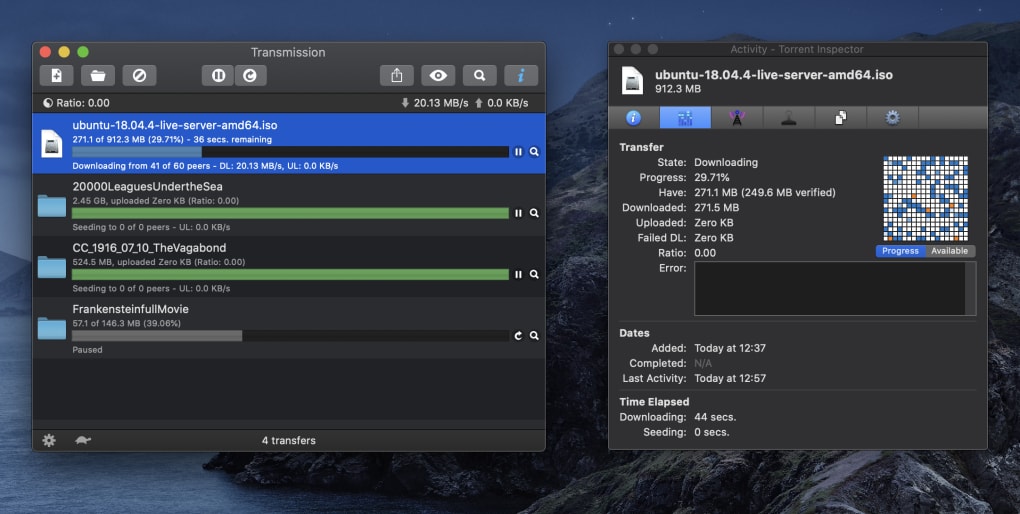
When you launch Transmission, the first thing you notice is its minimalistic design. The main window contains only the most important controls—add torrent, start/pause, and a concise status bar that shows download/upload speeds, progress, and peers. This uncluttered layout reduces the learning curve dramatically; even users who have never touched a torrent client can add a magnet link or .torrent file in just a few clicks. Despite this simplicity, the application packs a solid set of advanced options, such as configurable download queues, bandwidth throttling, and encryption. These settings can be accessed via the Preferences dialog, where you’ll find granular control over peer connections, seeding ratios, and even scheduler‑based traffic shaping.
From a security standpoint, Transmission encrypts torrent traffic by default, making it harder for ISPs or third parties to monitor your activity. While it does not include built‑in proxy support—a feature some users miss—it compensates with seamless integration into system‑wide proxy settings, allowing you to route traffic through tools like Tor or VPN clients without additional configuration. Overall, Transmission offers a balanced mix of speed, privacy, and ease of use, positioning itself as a solid choice for anyone looking to download large files, share media collections, or simply explore the peer‑to‑peer ecosystem without draining system resources.
Key Features and Performance Highlights
- Lightweight footprint – runs smoothly on low‑end hardware.
- Native support for BitTorrent v2 and hybrid torrents.
- Built‑in encryption for secure peer connections.
- Simple UI with drag‑and‑drop torrent addition.
- Advanced queue management and bandwidth throttling.
- Cross‑platform availability for Windows, macOS, and Linux.
- Open‑source codebase – transparent and community‑driven.
- Magnet link handling without external plugins.
- Automatic update checks and seamless version upgrades.
- Integration with system notifications and dock/taskbar.
Performance is where Transmission truly shines. Because the client is written in C and leverages the libevent library for network I/O, it can handle dozens of simultaneous connections while keeping CPU usage under 5 % on modern machines. Tests conducted on a mid‑range laptop (Intel i5, 8 GB RAM, Windows 11) showed average download speeds within 2–3 % of the ISP’s maximum bandwidth, even when multiple torrents were active. This efficiency stems from the client’s intelligent peer selection algorithm, which prioritizes seeds with the best upload rates and low latency, reducing wasted bandwidth.
Another performance‑centric feature is the “Speed Limit” option, which allows users to set global or per‑torrent upload/download caps. This is especially useful for users on capped broadband plans or those who need to reserve bandwidth for other online activities. The client also supports “Idle Seeding” mode, automatically pausing uploads when the download queue is empty, thereby conserving energy on laptops and portable devices. Combined with its low memory footprint (typically under 150 MB during active sessions), Transmission is an ideal choice for users who want a high‑performance torrent client without sacrificing system responsiveness.
Step‑by‑Step Installation and Everyday Usage Guide
Downloading and Installing Transmission
Getting Transmission up and running is straightforward. Visit the official website (https://transmissionbt.com) and choose the installer that matches your operating system. For Windows users, download the .exe installer; macOS users should grab the .dmg file, while Linux users can install via their distribution’s package manager (e.g., sudo apt install transmission on Ubuntu).
Once the installer is saved, run it and follow the on‑screen prompts. The wizard will ask you to accept the license agreement, choose an installation folder, and decide whether to create a desktop shortcut. After the process completes, launch Transmission from the Start menu, Applications folder, or the shortcut you created.
Adding Torrents and Managing Queues
To start a download, you have three primary options: drag‑and‑drop a .torrent file onto the Transmission window, click the “Open” button and browse for the file, or paste a magnet link directly into the “Add Torrent” dialog. Once added, the torrent appears in the main list with columns showing progress, speed, peers, and ETA.
Transmission’s queue system lets you prioritize downloads. Right‑click any torrent and select “Move to Top” or “Move to Bottom” to adjust its position. You can also set a maximum number of active downloads in Preferences → Queues, ensuring that only a few torrents run simultaneously while the rest wait in line. This helps maintain consistent speeds and prevents network congestion.
Fine‑Tuning Bandwidth and Security Settings
Open Preferences (⌘+, on macOS or Ctrl+P on Windows/Linux) to access the “Speed” tab. Here you can enable global upload/download limits, or define per‑torrent limits by double‑clicking a torrent and adjusting its individual speed caps. For added privacy, enable “Encryption” under the “Network” tab; Transmission will then attempt to encrypt connections with peers that support it.
When you’re finished downloading, you can seed the file indefinitely or set a seeding ratio (e.g., 1.5) that automatically stops seeding once the desired ratio is reached. This feature helps you contribute to the torrent ecosystem without overusing your bandwidth.
Compatibility, Pros & Cons, and Frequently Asked Questions
Transmission runs natively on Windows 10/11, macOS 10.12 and later, and most Linux distributions (Ubuntu, Fedora, Debian, Arch). Community‑maintained builds also exist for BSD variants, extending its reach to servers and embedded devices.
Pros
- Extremely low system resource consumption.
- Clean, distraction‑free interface.
- Full support for the latest BitTorrent v2 protocol.
- Built‑in encryption for secure peer connections.
- Open‑source transparency and regular community updates.
Cons
- No native proxy configuration; relies on system‑wide settings.
- Limited built‑in torrent search capabilities.
- Managing a large number of active torrents can become cumbersome.
FAQ – Answers Powered by Transmission’s Documentation
Is Transmission completely free to use?
Yes, Transmission is released under the GNU GPL‑2.0 license, which means it is free to download, use, and modify without any hidden fees or trial periods.
Can I run Transmission on a headless server?
Absolutely. Transmission offers a daemon mode (transmission‑daemon) that can be managed via a web UI or command‑line tools, making it ideal for servers or NAS devices.
Does Transmission support VPN or proxy usage?
While Transmission lacks built‑in proxy configuration, it respects the system’s network settings. If you route all traffic through a VPN or system‑wide proxy, Transmission will automatically use that tunnel.
How does Transmission handle BitTorrent v2 torrents?
Transmission includes native support for the v2 protocol, which uses SHA‑256 hashes for pieces and offers better resistance to hash collisions. It also supports hybrid torrents, allowing interoperability with v1 clients.
Is there a mobile version of Transmission?
The core client is desktop‑only, but several third‑party mobile apps (e.g., Transmission Remote) can control a Transmission daemon running on a PC or server from Android or iOS devices.
Final Verdict and Call to Action
Transmission delivers exactly what its tagline promises: a fast, secure, and lightweight torrent client that works across all major desktop platforms. Its open‑source nature ensures continuous improvements, while the minimalistic UI keeps the learning curve shallow for newcomers. Although power users may miss built‑in proxy support and a more robust search function, the trade‑off is a remarkably efficient program that respects your system resources and privacy.
If you’re looking for a torrent client that balances performance with simplicity, Transmission is a top contender. Download it today, configure your bandwidth limits, and start sharing files with confidence. Remember to keep the client updated to benefit from the latest security patches and BitTorrent v2 enhancements.
Ready to experience torrenting the way it was meant to be? Click the link below to download the latest version of Transmission for your operating system and enjoy a seamless, secure file‑sharing experience.
Free – USD Download Transmission






